
Avenue to Learn Editor – Additional heading options | Updated
To make creating accessible content easier, the Avenue to Learn Editor now includes Heading 5 and Heading 6 in the Format drop-down menu. Previously, the menu only displayed Heading 1 through Heading 4, and instructors had to use keyboard shortcuts or the Source Code editor to apply the additional heading levels. This update ensures that instructors can easily apply all standard heading levels directly from the Format menu, supporting compliance with accessibility standards.
This feature implements the following PIE item:
- D13831 (Add H5 and H6 to ‘format’ dropdown)
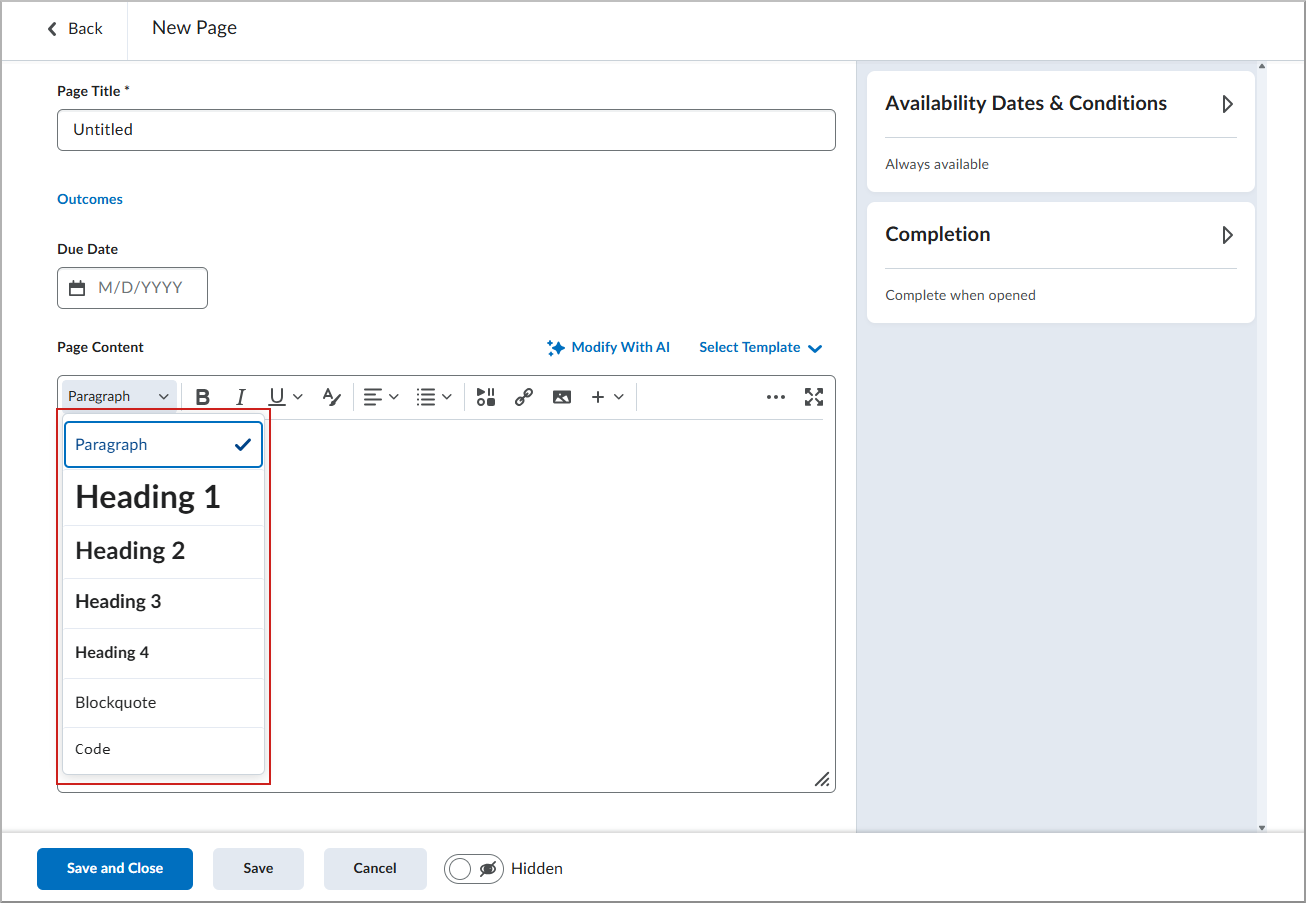
Figure: The current Format drop-down menu showing only Heading 1 to Heading 4.
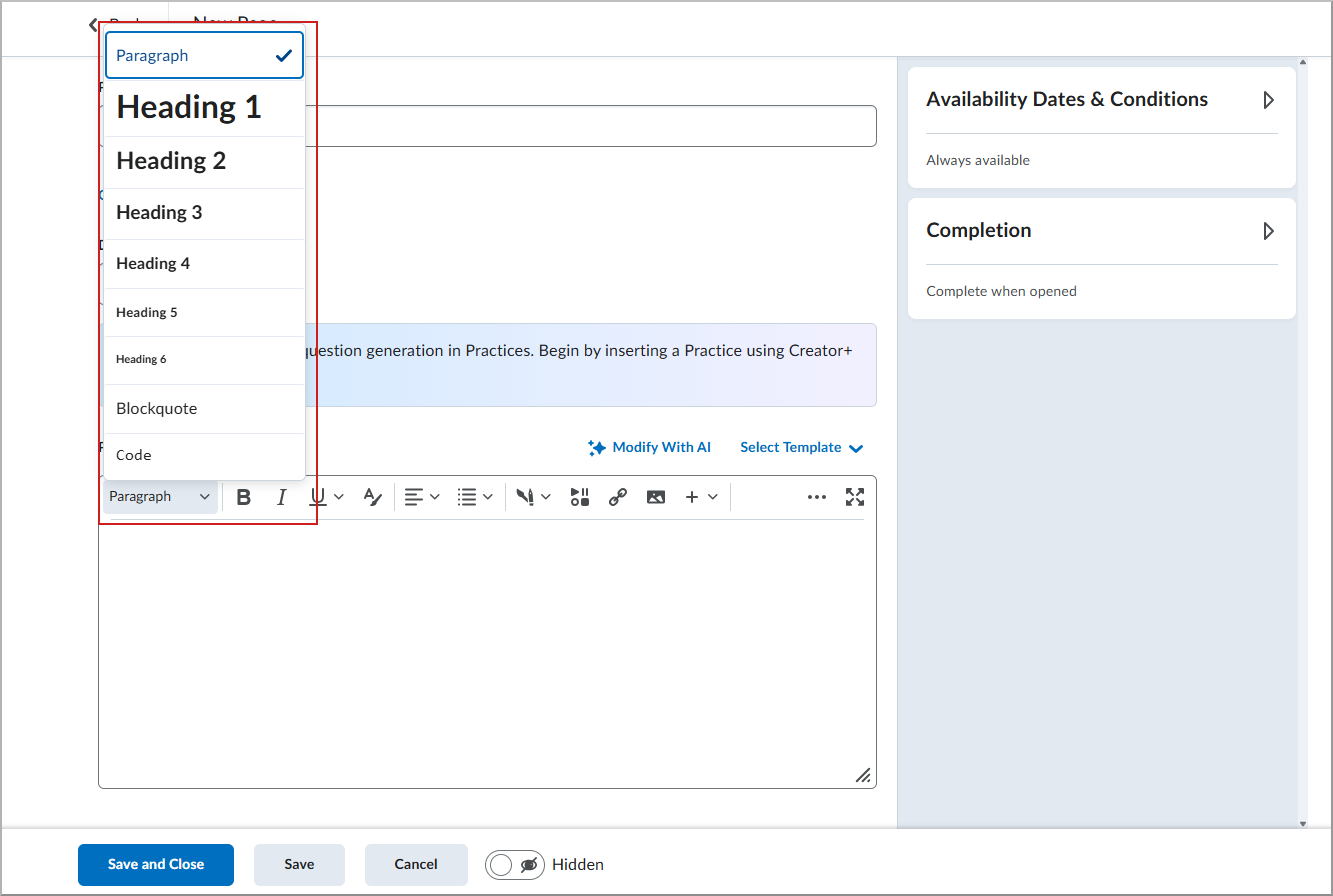
Figure: The new Format drop-down menu showing Heading 1 to Heading 6.
Groups – Bulk edit group names and codes | Updated
To improve efficiency when managing large numbers of groups, the new Manage Groups experience now allows instructors to bulk edit group names and codes within a category. Previously, instructors had to select each group individually to edit its details. Instructors can now click Edit Group Names to update the names and codes for one, multiple, or all groups from a single interface, saving time and reducing administrative effort.
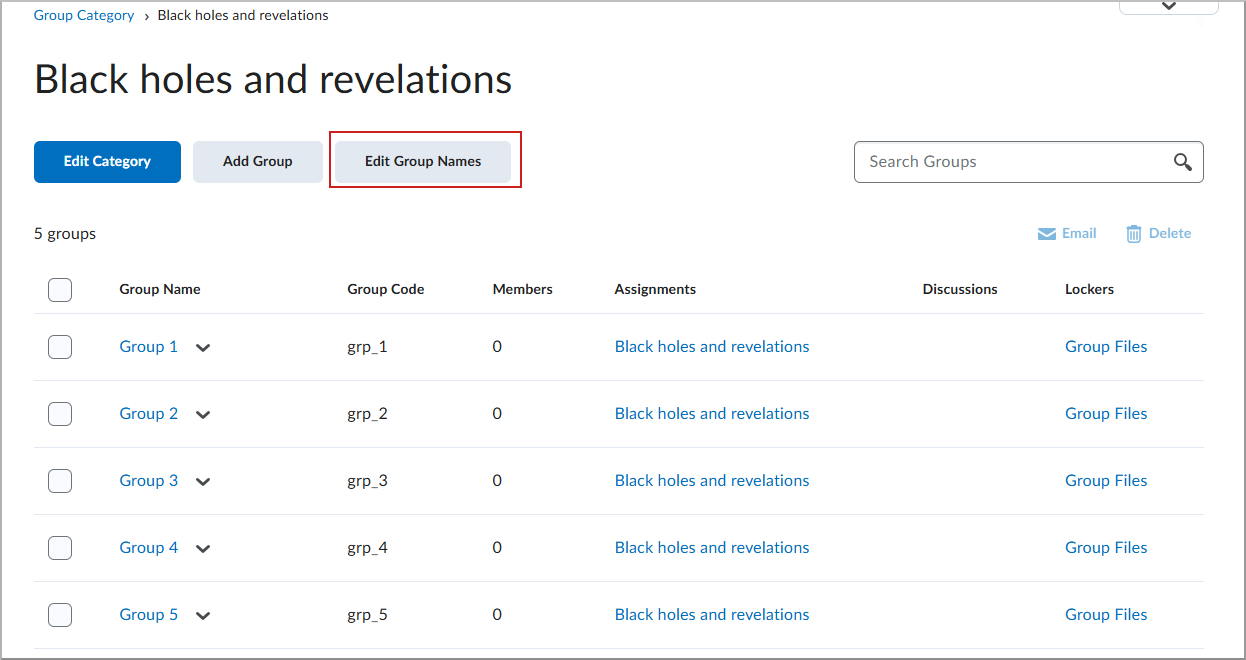
Figure: On the Group Category page, instructors click Edit Group Names to edit one, multiple, or all groups.
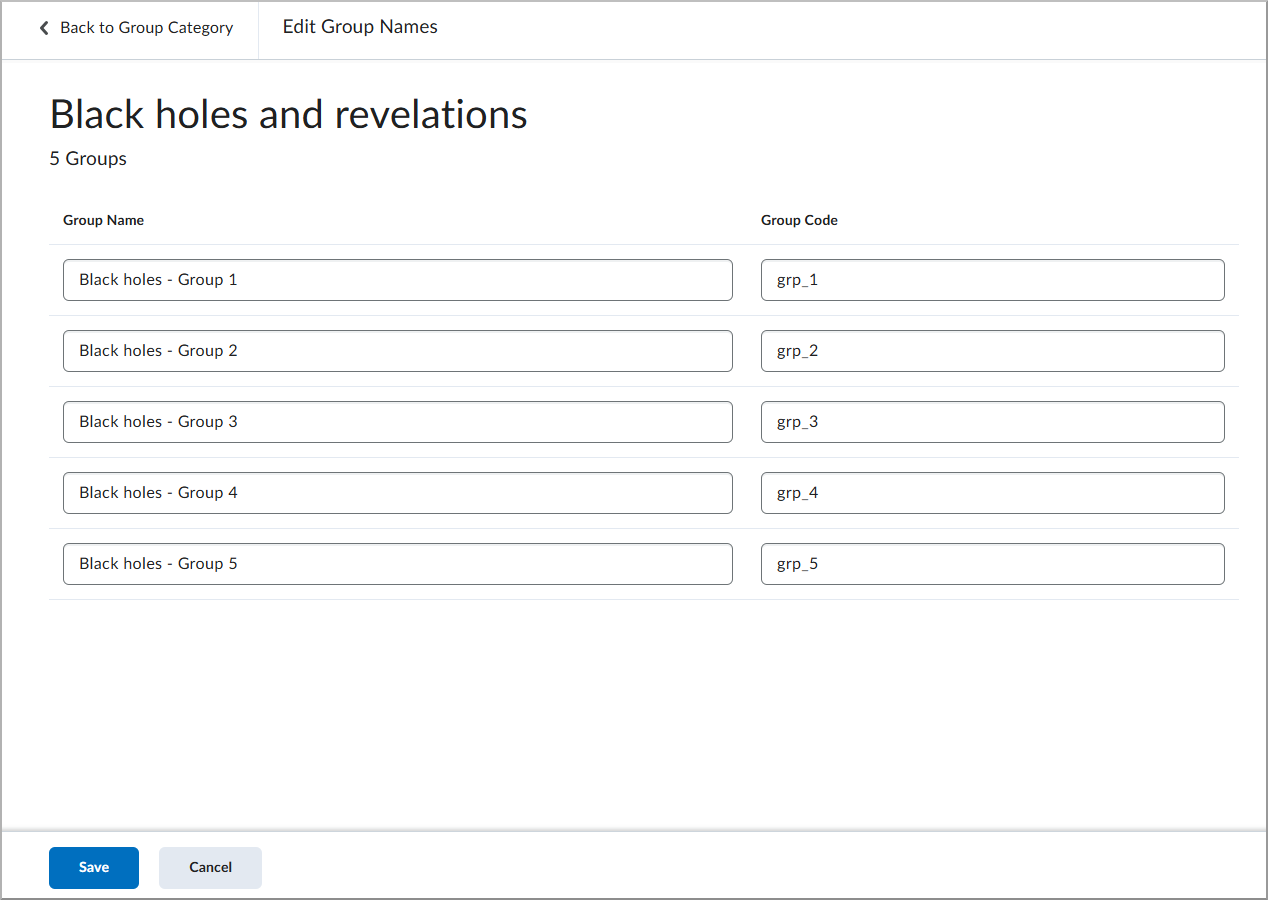
Figure: On Edit Group Names, instructors can edit the Group Name and Group Code for all groups.
New Content Experience – Removing the Preview as a Student option | Removed
To provide a more accurate representation of the learner experience, the Preview as a Student option is removed from the New Content Experience.
Previously, the Preview as a Student option was available in Content, but it did not accurately reflect the learner experience. This preview had several limitations. For example, it did not correctly apply availability dates and release conditions, and it displayed the instructor view instead of the learner view for Assignments, Quizzes, and Discussions.
Before:
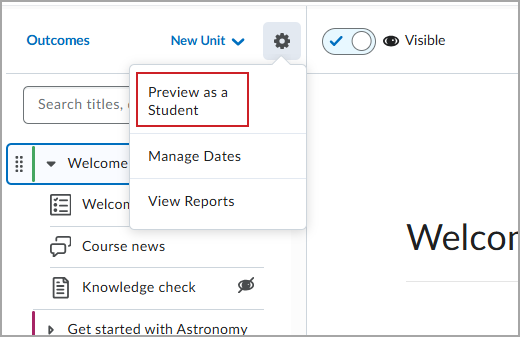
Figure: The Preview as a Student option previously appeared in the Settings menu in the New Content Experience.
After:
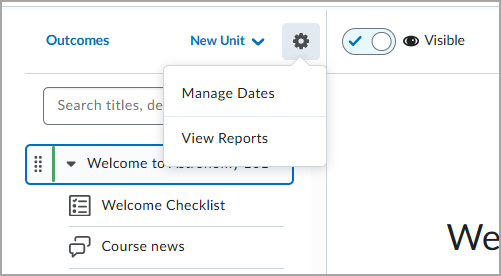
Figure: The Preview as a Student option is no longer available in the Course options menu in the New Content Experience.
To view your course from a learner’s perspective, use one of the following supported options:
- Role Switch: From your user profile, use the Change Role feature to switch to a learner role.
While each option has its own considerations, both provide a more accurate representation of the learner experience than the previous Preview as a Student option. For more information, refer to Preview your course.