
Rubric Icon in Assignments, Discussions, and Quizzes | New
Instructors can now identify which Assignments, Discussions, and Quizzes include attached rubrics directly from list pages, helping instructors and administrators quickly audit assessments, confirm rubric setup, and reduce configuration errors.
When a rubric is attached to an activity, a rubric icon appears beside the item in the Assignments, Discussions, and Quizzes list pages. Written response questions in the Quiz Creation page also display a rubric indicator when a rubric is attached. Activities that include both rubrics and learning outcomes continue to display the rubric icon.
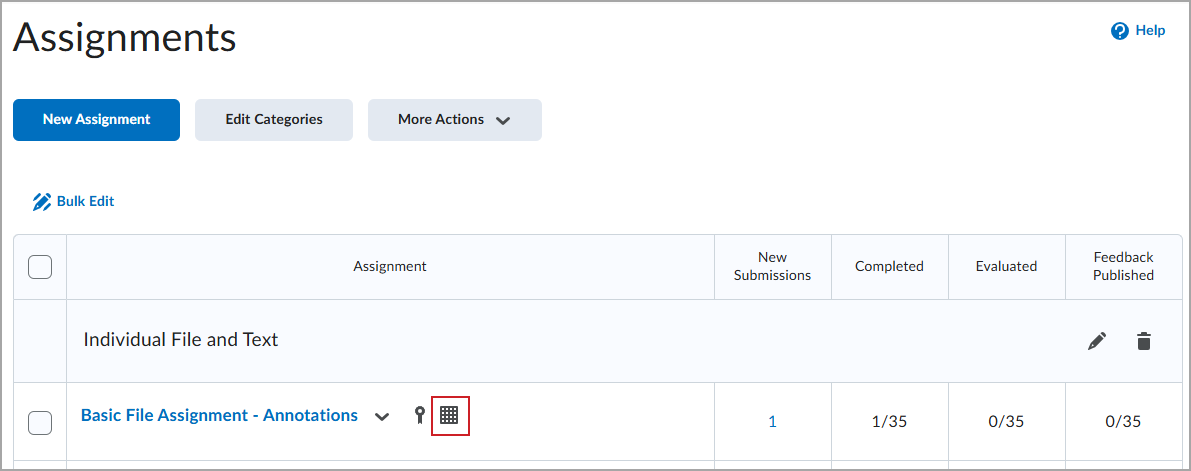
Figure: Rubric icon displayed beside assignment in Assignments list.
The rubric icon is informational only and does not link to the rubric, consistent with other informational icons such as release conditions and anonymous marking.
Sharing Awards with a Public Link
Learners can share their awards with a Public URL directly from the Awards tool using the Awards Sharing option.
More information can be found at the vendor’s site, at Introducing Sharing Awards with a Public Link – Brightspace
Update to Discussion Replies
Replies to discussion posts will no longer include the original post in the body of the reply by default. If you wish to have the original post show up in your own replies, you can turn them on for yourself again by clicking the gear wheel icon in Discussions and checking the box to “Include original post in reply.”

