
General Announcements
Important platform-wide updates, infrastructure changes, and ecosystem announcements related to this release.
Groups – Improved Manage Members experience | Updated
To make it easier for instructors to manually manage group membership, the new Manage Groups experience now includes an improved Manage Members page with Groups and Learners tabs. Instructors can manage membership by viewing groups and their members or by viewing learners and the groups to which they belong.
Depending on how the new Manage Groups experience is configured, users can use the available toggle to switch between experiences. For more information, refer to Introducing New Manage Members Workflows in Manage Groups.
As part of this update, the Manage Groups page includes a new Not Enrolled column that identifies the number of learners who are not enrolled in a group within each category. Selecting the number of unenrolled learners opens the Learners tab on the Manage Members page, automatically filtered to show unenrolled learners.
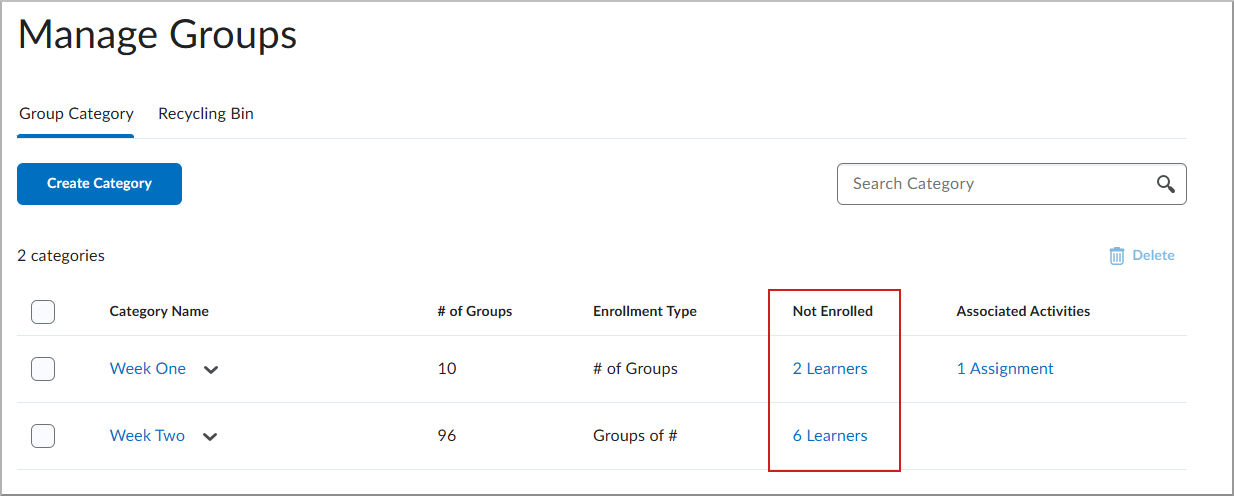
Figure: The Not Enrolled column provides direct access to learners who are not currently assigned to a group in the category.
The Groups tab is selected when instructors manage members for an entire category or a specific group. When managing a single group, the page is automatically filtered to that group. Instructors can also filter the page by one or more groups. To add members to a group, instructors select the + icon and select one or more learners. To remove a learner directly from a group, instructors can select the X beside the learner’s name on the Groups tab.
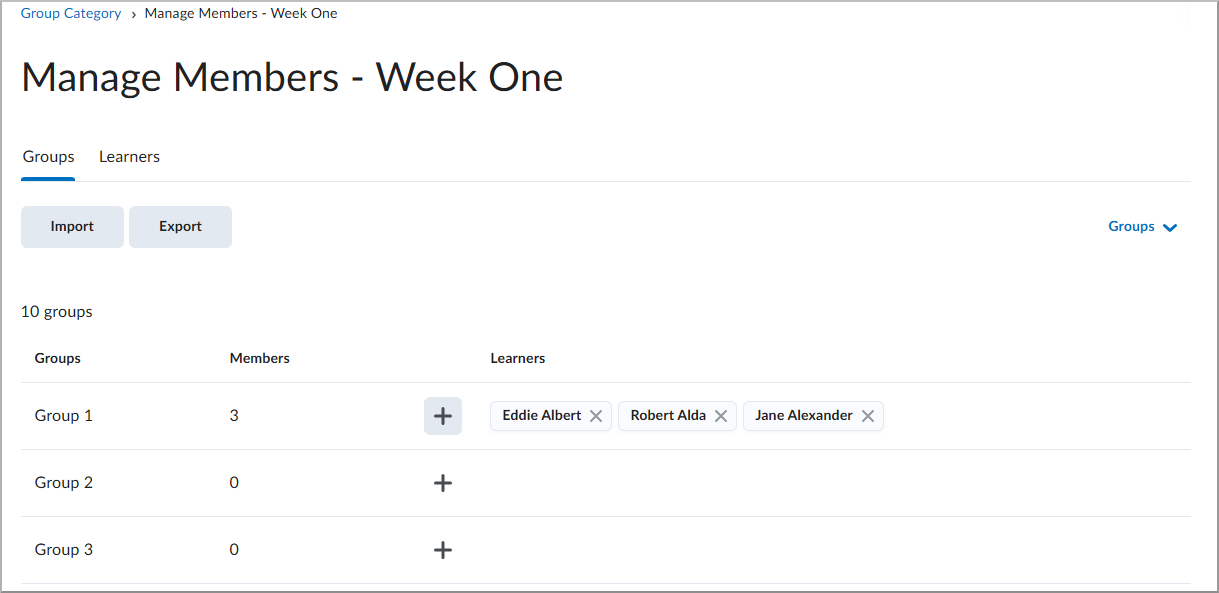
Figure: Use the Groups tab to view group membership and filter the list by one or more groups.
Unselecting a learner who is already a member removes that learner from the group. Instructors can search for learners by name or filter the list to show only learners who are not currently enrolled in a group.
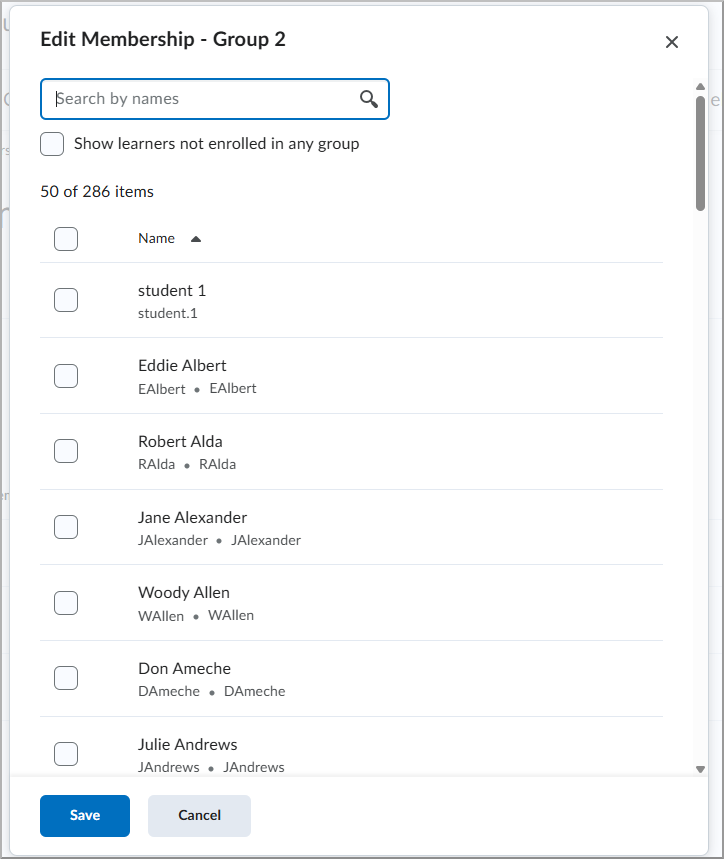
Figure: Select learners to add them to the group, or clear selected learners to remove them from the group.
On the Learners tab, instructors can adjust the filters to show enrolled or unenrolled learners, search for a learner, or filter by one or more groups.
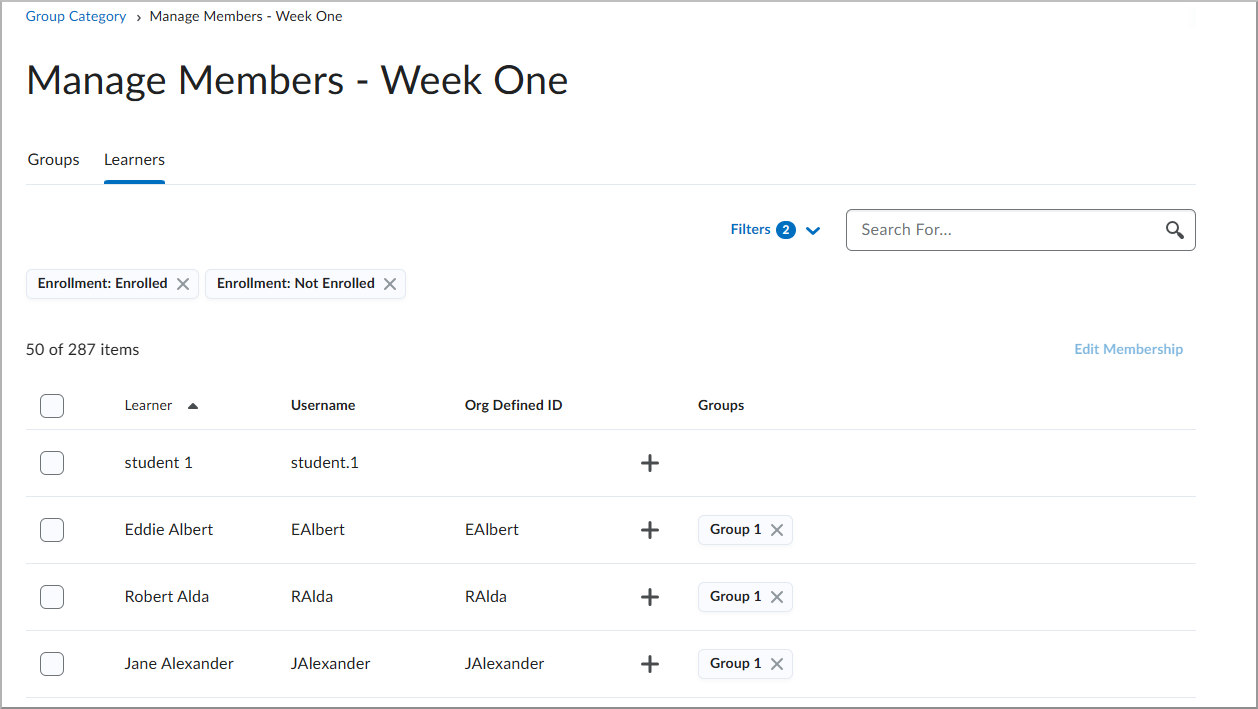
Figure: Use the Learners tab to find learners and review their group membership.
To change the group membership of an individual learner, instructors select the + icon beside the learner’s name and select one or more groups. Unselecting a learner a group in which the learner is already enrolled removes the learner from that group.
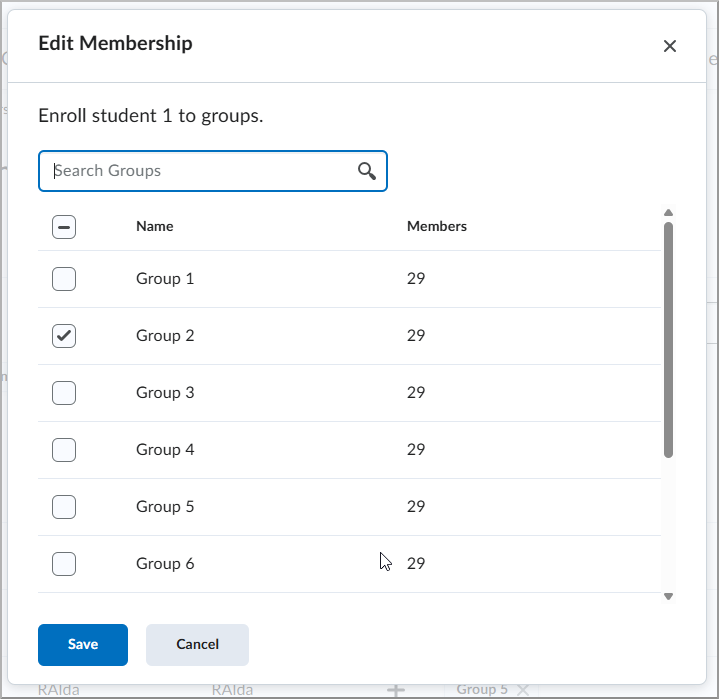
Figure: Select one or more groups to update the group membership of an individual learner.
To update multiple learners at the same time, instructors select the learners and then select Edit Membership. From the Edit Membership dialog, instructors can enroll the selected learners in one or more groups or remove them from groups by unselecting the corresponding checkboxes. A group appears selected only when all selected learners are already enrolled in that group.
This update also increases the number of groups initially displayed on the group list page from 10 to 200. Selecting Load More displays up to 200 additional groups at a time. This improvement is based on feedback from customers who opted in to the new Manage Groups experience.
This feature implements the following PIE items:
- D13146 (Fix Group Enrolment Search/Browse)
- D14251 (Increase number of groups shown in New Manage Groups user interface)
Quizzes – Improved group and section filters | Updated
To improve navigation and consistency across Avenue to Learn, the Quizzes tool now uses the enhanced group and section filters originally introduced in the February 2026/20.26.02 release. This update replaces the combined View By filter with separate, searchable Groups and Sections filters, significantly improving scalability for courses with a large number of groups.
This update impacts the Quizzes View Statistics pages and the Grade Quiz workflow. On the View Statistics page, the filters are available on each tab: User Stats, Question Stats, and Question Details. Filter selections are specific to the active tab, preventing settings from being reset when navigating between different statistical views. On the Grade Quiz page, the filter continues to function as before, where filter selections are specific to the active tab.
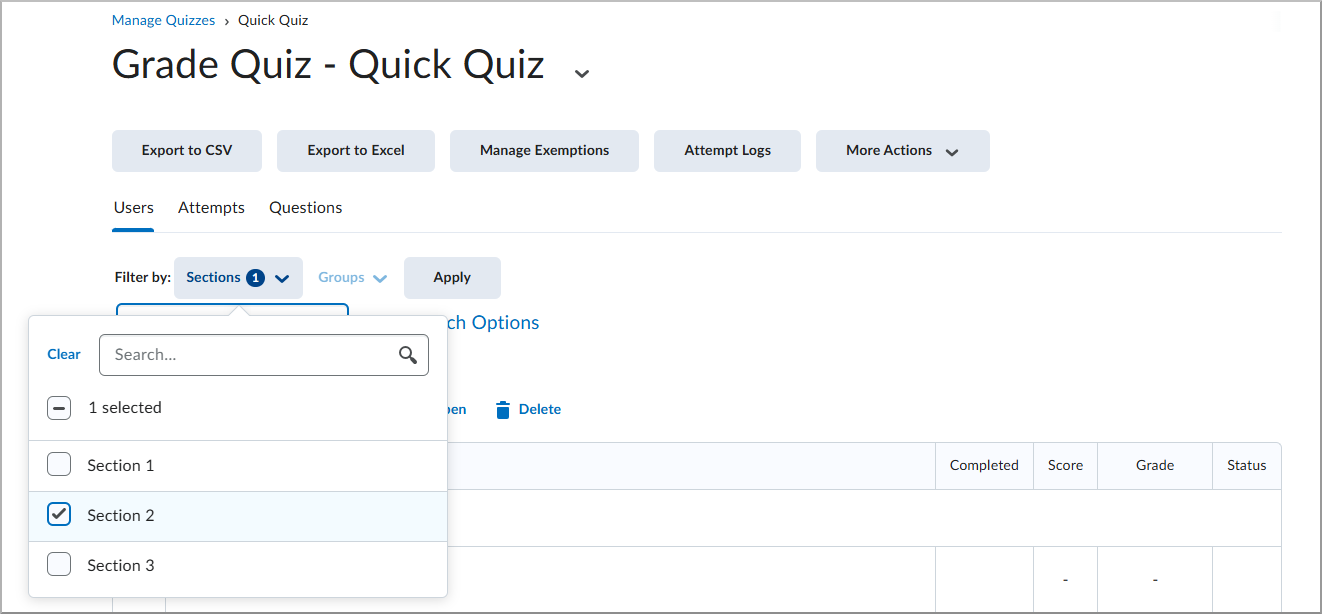
Figure: On the Grade Quiz page, use the Sections filter to filter by course sections.
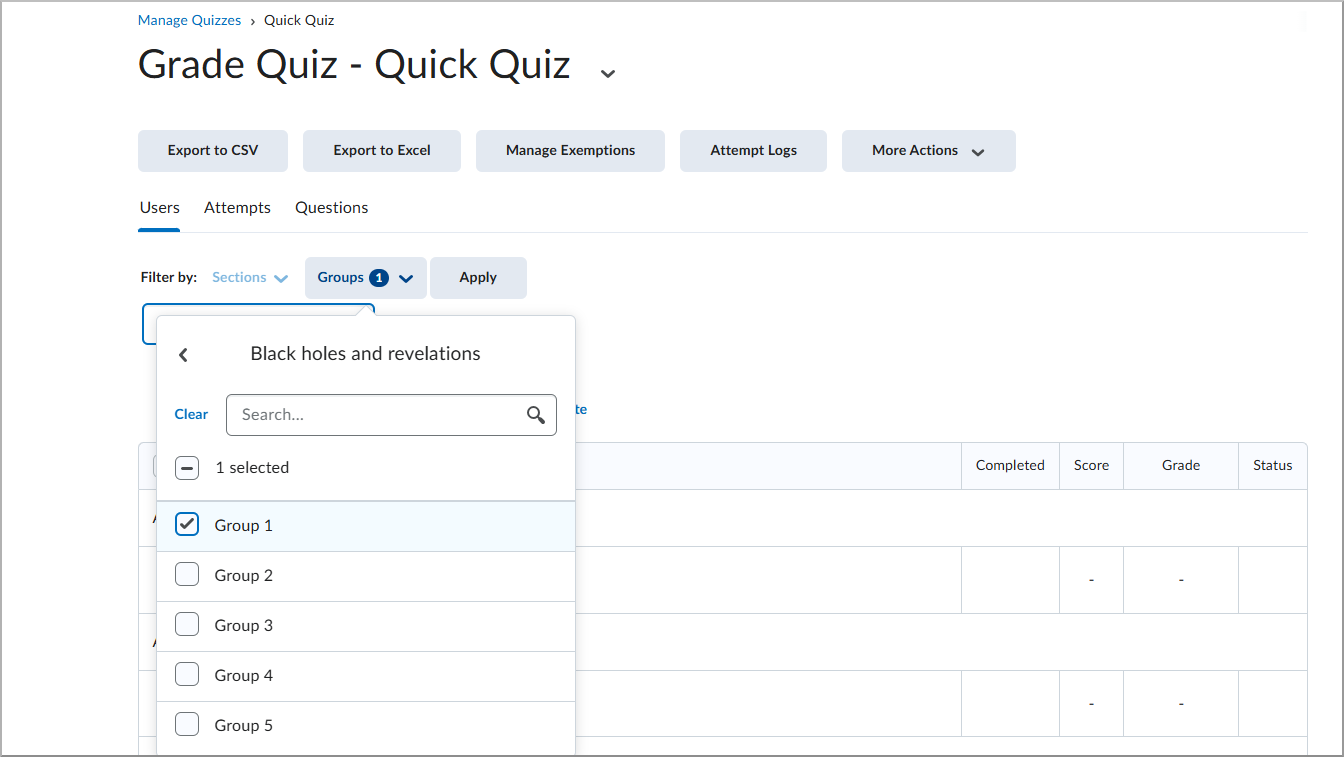
Figure: On the Grade Quiz page, use the Groups filter to filter by groups.
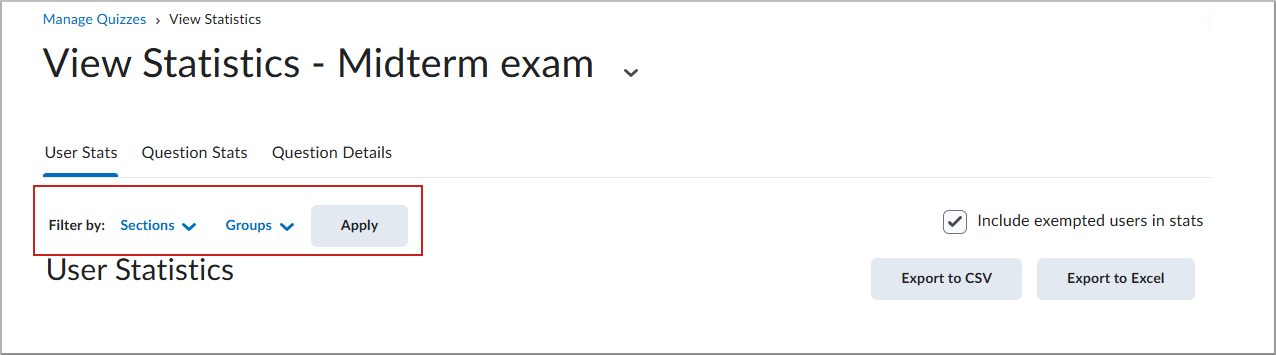
Figure: On the View Statistics page, the filters are available on each tab and work independently.
Creator+ – Practice experience improvements | Updated
Creator+ Practice activities now have a cleaner layout, making it easier for learners to associate the Check Answer button with its corresponding question. The separator now appears below the button instead of above it, creating a clearer distinction between questions. Consistent spacing and fonts have been applied to the Overall Feedback across Practice types.
Additional visual refinements, including consistent padding provide a more cohesive experience for instructors and learners. All existing Practices and Elements will see the benefits of these changes.These changes do not affect how Practice activities function.
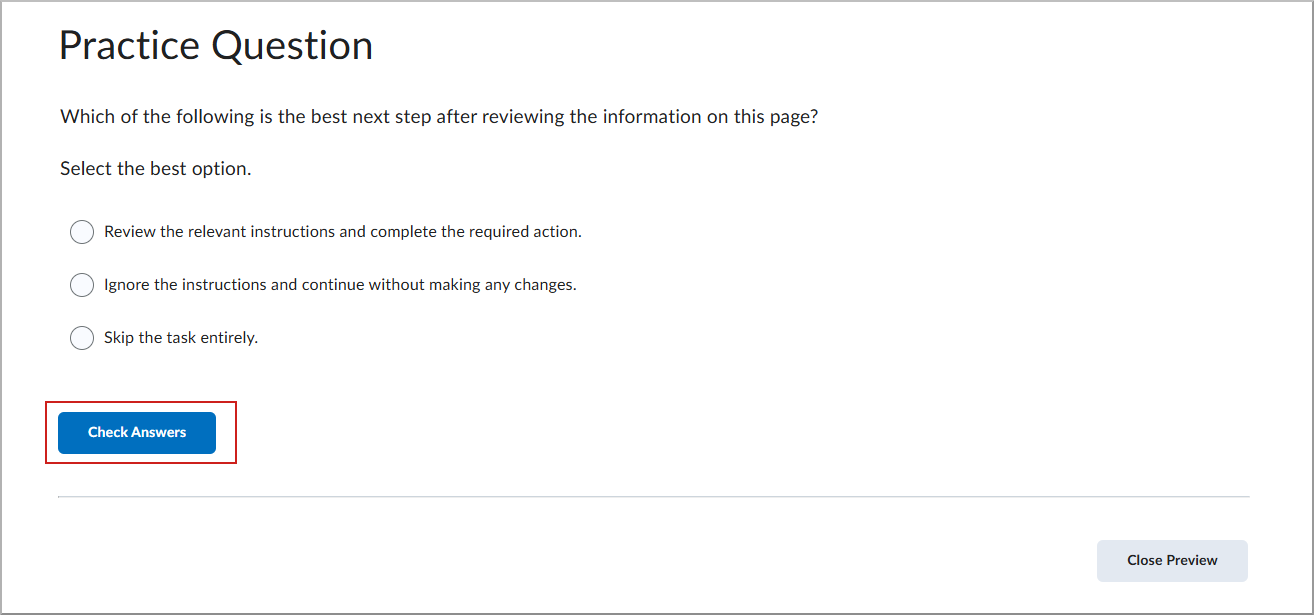
Figure: In the updated Creator+ Practice activity, the separator appears below the Check Answer button, visually separating it from the next question.
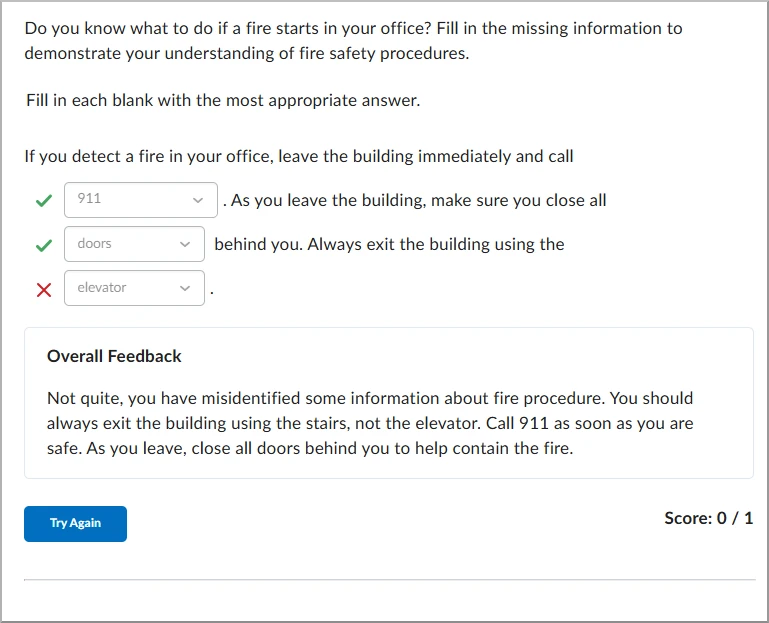
Figure: Updated quiz experience with consistent spacing and feedback formatting, and the answer separator below the Check Answer or Try Again button.