
General Announcements
- New Content Experience now provides sufficient functionality to support D2L’s intent to end support for Classic Content. This change is an important step toward providing a single content experience. Support for Classic Content will end in June 2029. For transition plans and best-practice guidance, refer to the Intent to EOL Classic Content blog posts.
- The New Content Experience (NCE) is officially being renamed to Content across all Brightspace product documentation and user help resources. Terms for Classic Content, Learner Experience, and configuration variables remain unchanged.
- As per the released article in August, If you’re an H5P or a Creator+ with H5P customer, you can stay up to date with the latest improvements and features by visiting H5P News.
Work To Do Widget – View Course Work link | Updated
The Work To Do widget now includes a View Course Work link when accessed from a course homepage, giving learners access to all overdue and upcoming activities for that course. When a course has more than six activities, the new View Course Work link opens the Work To Do tool filtered to that course. This gives learners a complete view of their course-specific workload without requiring organization-level permissions.
Previously, learners with permission to view the widget only at the course offering level could see a maximum of six activities. The View All Work link, which opens activities across all courses, remains available only to users with organization-level permissions.
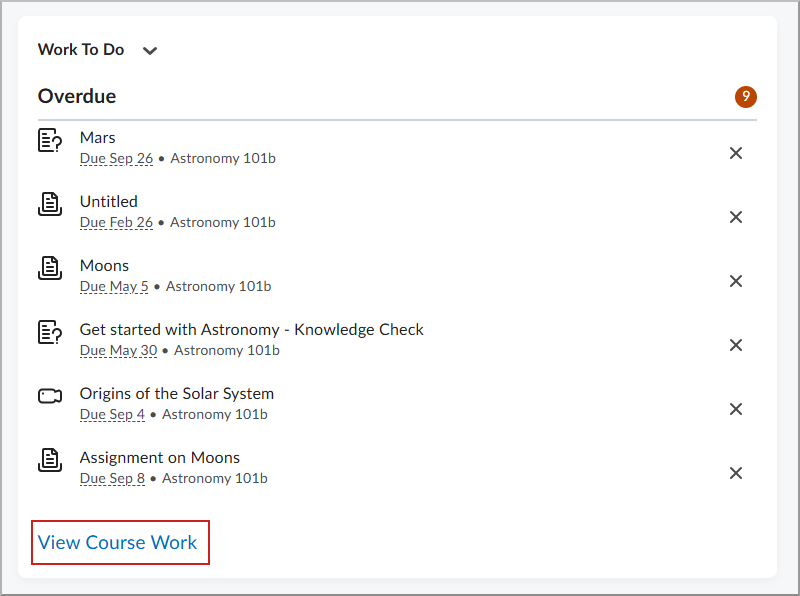
Figure: The Work To Do widget now displays a View Course Work link when more than six activities are available in a course.
Work To Do Widget – View times for upcoming and overdue activities | Updated
The Work To Do widget now displays the specific time an activity is due or ends, along with associated availability dates, when learners hover over an activity date. Previously, the widget displayed only the date an activity was due or ended.
This update gives learners more precise deadline information, including when they work across different time zones.
This feature implements the following PIE item:
- D7980 (Show Date & Time in the Work To Do Widget)
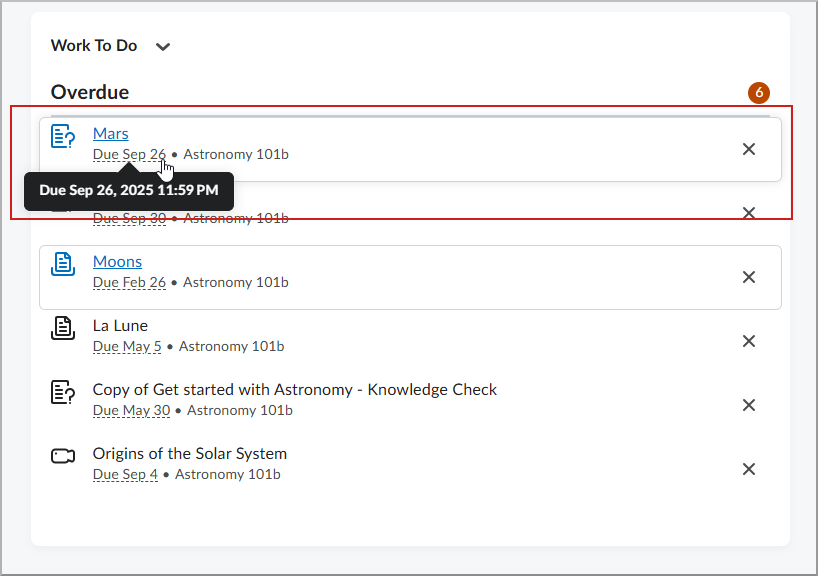
Figure: The Work To Do widget displays the specific time an activity is due when a learner hovers over the date.