
Installing Respondus LockDown Browser
This guide will show you how to install Respondus LockDown Browser as a student. We’ll go through it step-by-side on a PC, a Mac, and an iPad. Please note that if you are using a Linux machine, Respondus will not work on your device.
If you are an instructor looking to connect Respondus to your course, please check out this article for more details.
Windows
- In your Avenue course, go to Assessments > Quizzes. Find the test that will be using Respondus. You’ll be able to tell because the name will end with “Requires Respondus LockDown Browser.”
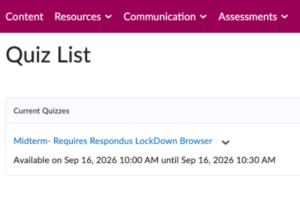
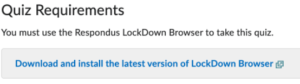
- Click on the quiz, and then scroll to the bottom of the resulting page. You’ll see a button labelled “Download and install the latest version of LockDown Browser.”
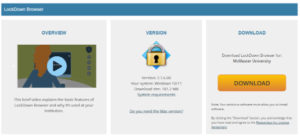
- On the resulting page, please confirm in the centre tile that it has correctly identified your operating system and then click “Download” in the right tile.
- Navigate to where your computer stores downloads and double click on the file.

- Run through the Windows Installer, agreeing to the terms of the license as you do.
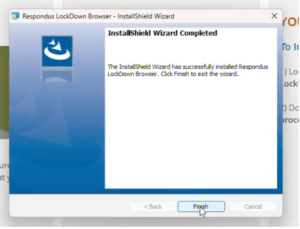
- Click Finish once the installer is complete.
- You can now return to Avenue to write your quiz! Click on “Launch LockDown Browser.”
Mac
- In your Avenue course, go to Assessments > Quizzes. Find the test that will be using Respondus. You’ll be able to tell because the name will end with “Requires Respondus LockDown Browser.”
- Click on the quiz, and then scroll to the bottom of the resulting page. You’ll see a button labelled “Download and install the latest version of LockDown Browser.”
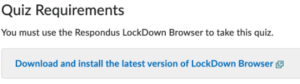
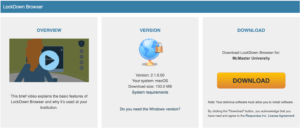
- On the resulting page, please confirm in the centre tile that it has correctly identified your operating system and then click “Download” in the right tile.
- Respondus will begin downloading. Navigate to where your computer puts downloads and double click on the zipped folder. It will produce a .pkg file.
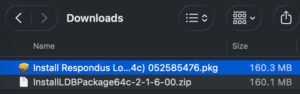
- Double click on the .pkg file. It will ask you to allow it to check if your computer can run LockDown Browser. Allow it to do so.
- Run through the installer, agreeing to the licensing agreement and choosing a location for the software to install. Click Install.
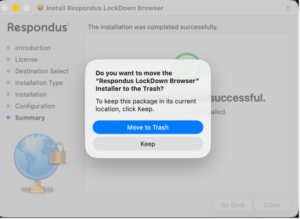
- Once it has finished installing, you can move the Installer to the trash.
- You are now free to return to your quiz. Click on “Launch LockDown Browser.” It will close all other programs you have running on your computer and you will be able to write your quiz!
iPad
- When taking a Respondus quiz on an iPad, you’re actually going to start by going to the App Store. Search for LockDown Browser and download it.
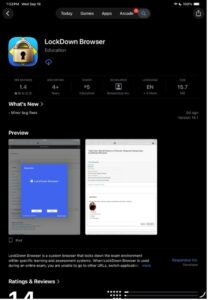
- Once it is installed, return to the quiz and select “Launch LockDown Browser.” It will launch and then ask if it can Self-Lock. Click “Yes.”
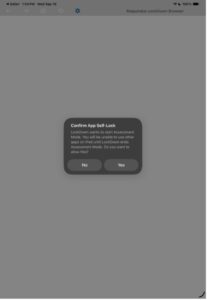
- It will take a moment to load, but then you will be able to write your quiz!
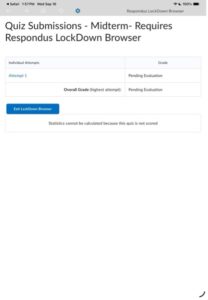
- Once you have submitted your quiz, you can click “Exit LockDown Browser” to close it and return to your regular iPad usage.
Video Tutorial
If you would prefer to see these steps in a video format, please see the embedded video below, or check out the link to the video here.