Grades

Grades

Vendor Documentation

How do I setup my grade book in Avenue to Learn? https://community.d2l.com/brightspace/kb/articles/3539-set-up-your-grade-book

Understanding the Grades Tool:

How to create a Grade Item:

How to Create a Grade Book Category:

How to Enter Grades:

How to Create Grade Exemptions:

Automatic zero grading for missing submissions:

The automatic zero grading feature automatically assigns a score of zero (0) to unsubmitted learner activities once the due date passes. This automation eliminates the need for instructors to manually assign zeros to missing submissions, simplifying the process of identifying learners who have not submitted their course work. Additionally, learners benefit by receiving a more accurate view of their grade calculations for individual activities and the overall course.

The automatic grading option comprises two main features:

  • Automatically assigning a grade of zero for unreceived past due date: This feature ensures that any assignment not submitted by the due date is automatically given a zero.
  • Automatically tagging the assigned zero grade: This indicates that the grade was automatically added, not manually graded by the instructor.

Automatic Zero grading does not apply to missed submissions by default. Instructors can enable the setting in their own courses if they so choose.

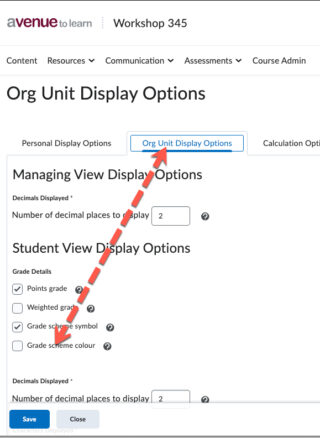
Access/turn on via the grades ‘settings’ link, and click on the ‘Calculation Options’ tab – the checkbox can be found here:

How Automatic Zero works

Once enabled, Automatic Zero operates on activities that have due dates. The system automatically assigns a grade of zero (0) to a learner once the activity due date or special access due date passes, provided there are no other exemptions or release conditions. This functionality replaces the need for an instructor to review and score missing items individually or via bulk score.

On Enter Grades, instructors see a dashed underline applied to automatic zeros (0) along with a tooltip that appears on hover to indicate that the system automatically applied the zero (0).

If there is no due date set on the assessment, this feature will not work for the respective assessment.

When turned on, Automatic zero grading applies to supported course activities with a future due date, and only runs when the due date is missed.

Timing

  • The Automatic Zero feature is most effective when implemented at the start of a course. Once automatic zero grading is turned on, only activities with due dates in the future will be able to trigger automatic zero grading.
  • Automatic zero will not affect grades retroactively. Manually grading missed submissions is still required in this situation.
  • There is no retroactive automatic zero grading applied for new users enrolled after the due date has passed for activities. Courses with frequent additions of new users should consider this limitation.
  • This feature is based on local time zones for both instructors and learners. It follows the same rules as existing due dates.
  • Automatic zero grading is triggered within minutes of a due date passing. Note that it may take up to 15 minutes for zero grades to appear in the gradebook.

Availability

  • Automatic zero grading only applies to course activities with grade associations and a future due date. Editing an activity to change its past due date to a future due date also applies the automatic zero grading feature.
  • Automatic zero grading only applies to visible and available activities. If an assessment has Release Conditions and due date, a learner will only receive an Automatic Zero if they meet the release conditions when the due date passes.
  • Automatic zero grading is course-wide setting. It cannot be selectively enabled or disabled at the activity or grade item level.
  • Automatic zero grading applies to individual and group assignments.
  • Automatic zero grades apply to special access due dates. In the event special access is added after the original due date, the original 0 grade remains in place until the activity is evaluated manually.
  • Learners can submit a course activity after the due date after they have received an automatic zero (if the activity remains available). Instructors can manually grade and override the zero. In this case, the corresponding overdue indicators will be cleared in the gradebook and learner view of grades.
  • Automatic zero functionality publishes grade items with zero to learners automatically in the Grades view.
  • Like other grade settings, automatic zero setting is respected and copied over when copying a course. Note the setting does not persist when importing or exporting a course or grades.


Final Grade Submission

We’ve detailed a guide regarding final grade submission in the following guide: https://avenuehelp.mcmaster.ca/exec/final-grade-submission/


What do the colours mean in my grade book?


If you opt to have the colour scheme applied, such as in the ‘settings’ area of grades:
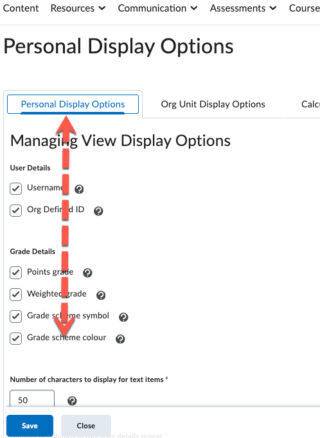
 

personal display options checkbox for grade scheme colour

org unit display options checkbox for grade scheme colour


The ranges are as follows for each colour:
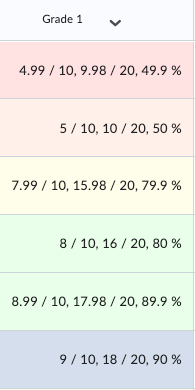
 

percentage ranges for colour schemes

Red = 0-49%

White = 50-79%

Green = 80-89%

Blue = 90-100%

This can be changed, but you would have to create a new grade scheme.

More info on how to do this can be found at the vendor’s (D2L) page


Related Articles